
FolkBinder guide
How can we help?
Learn how to build your tune library, prepare set lists, work with scores and playback, and practice your repertoire.
This guide follows the current development build and may change before release.
Start here
Quick Start
Build a library, organize set lists, and start playing.
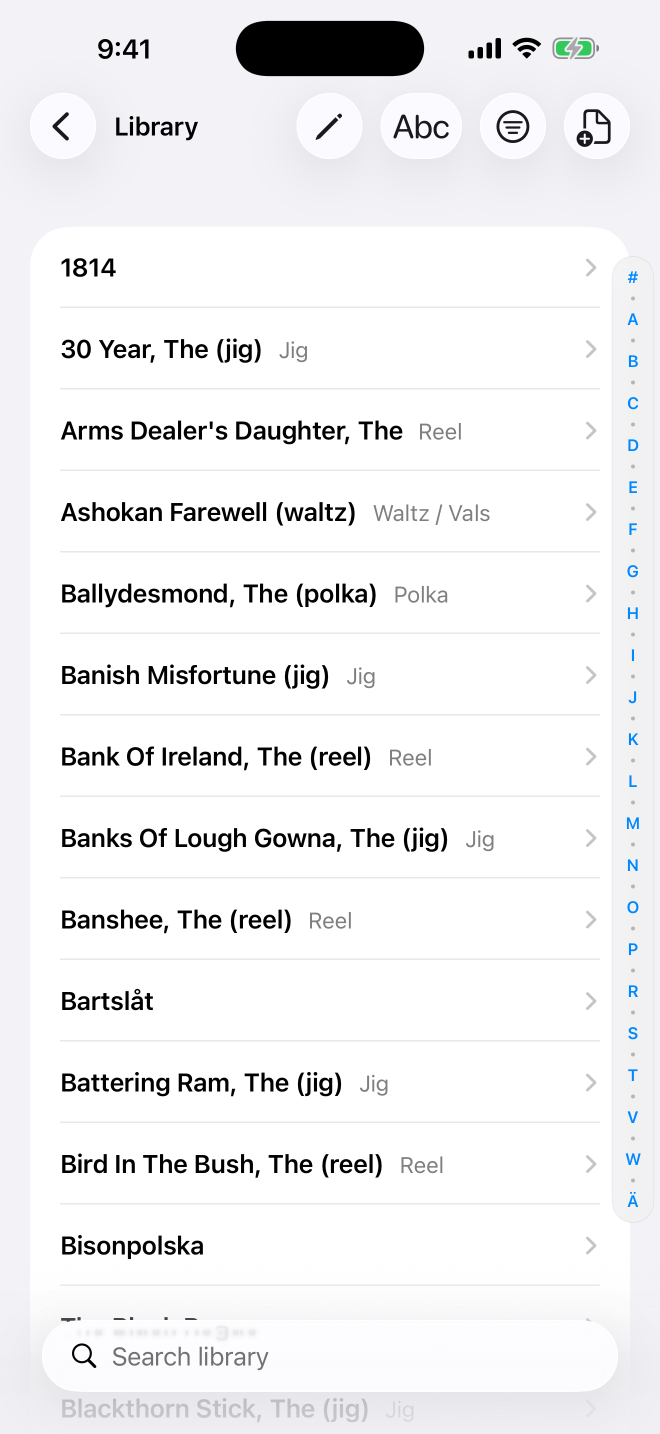
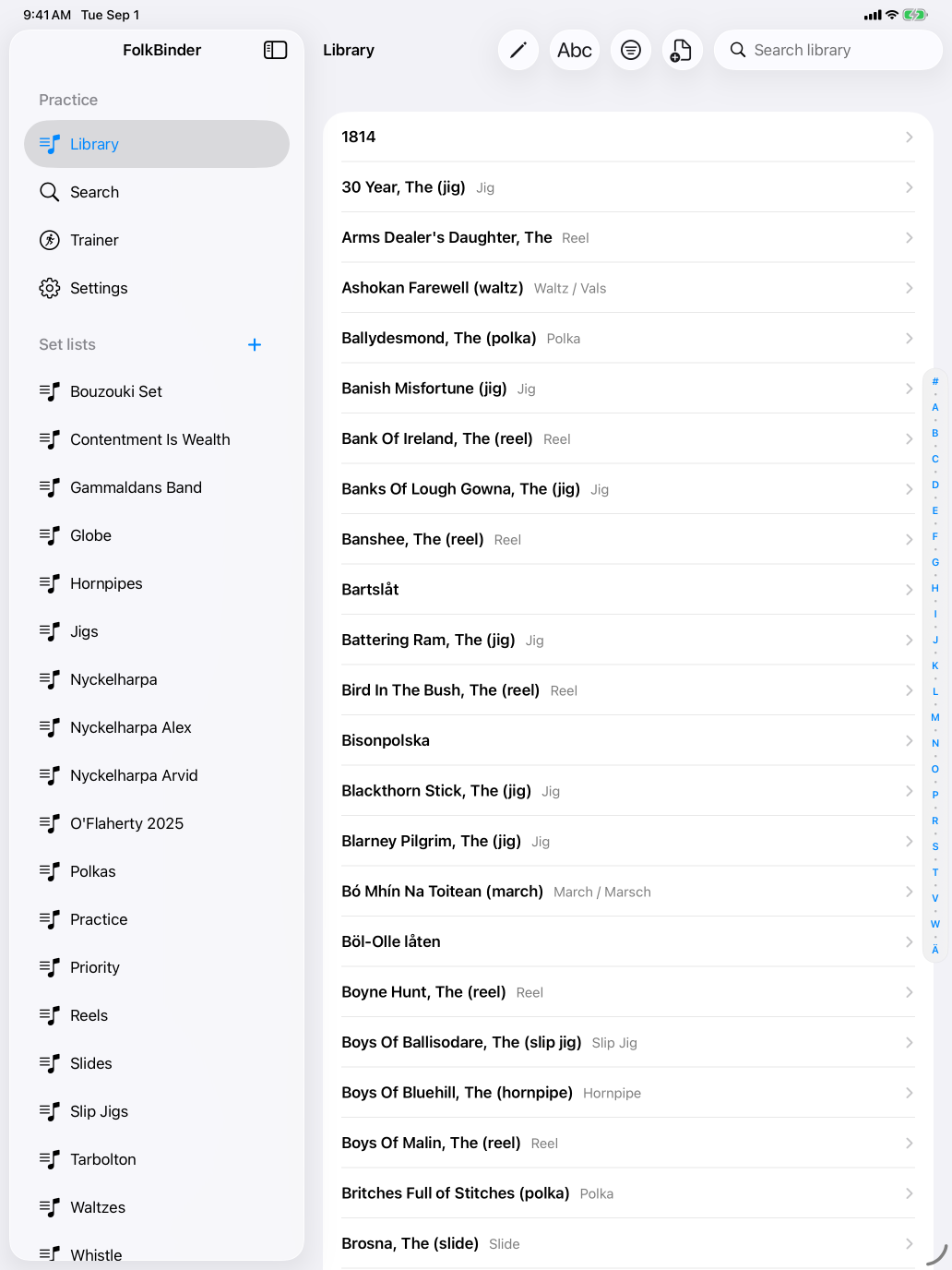
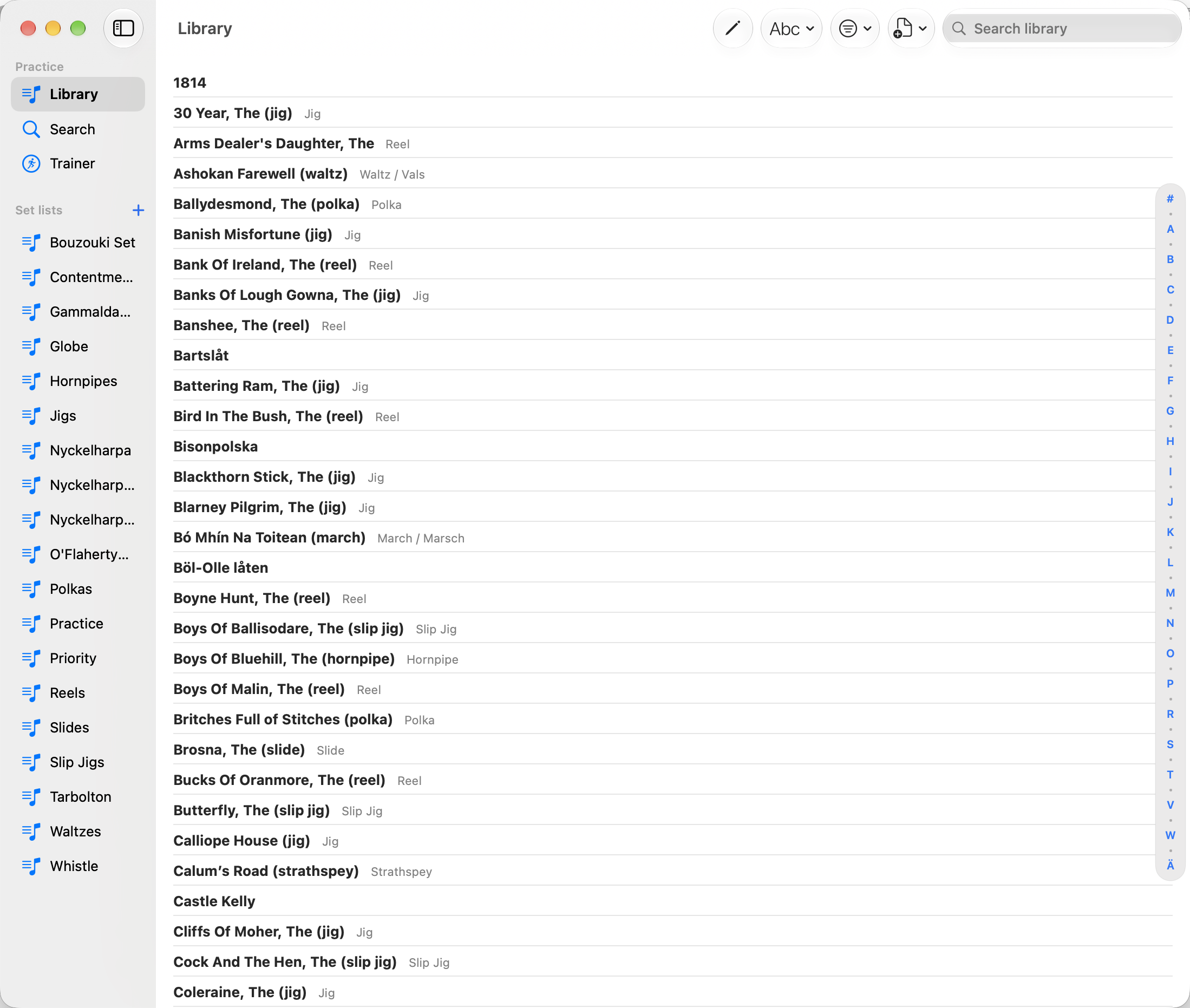
Build your library
- Use Search to find tunes on The Session and FolkWiki.
- Use Import in the Library to add PDFs, ABC files, images, or several files at once.
- On iPhone and iPad, share supported files or tune links from another app to FolkBinder.
Organize and perform
- Create set lists from the sidebar, then add tunes from a tune’s toolbar or Library shortcut menu.
- Open a tune to view its score. Tap or click the score to maximize it.
- Use arrow keys, Page Up and Page Down, or a Bluetooth page turner to navigate a score.
Practice
- Attach a recording or find playback for a PDF tune.
- Use Trainer to identify tunes by ear or practice playing from a title.
Build your collection
Finding and Importing Tunes
Search online sources or bring in your existing scores.
Search
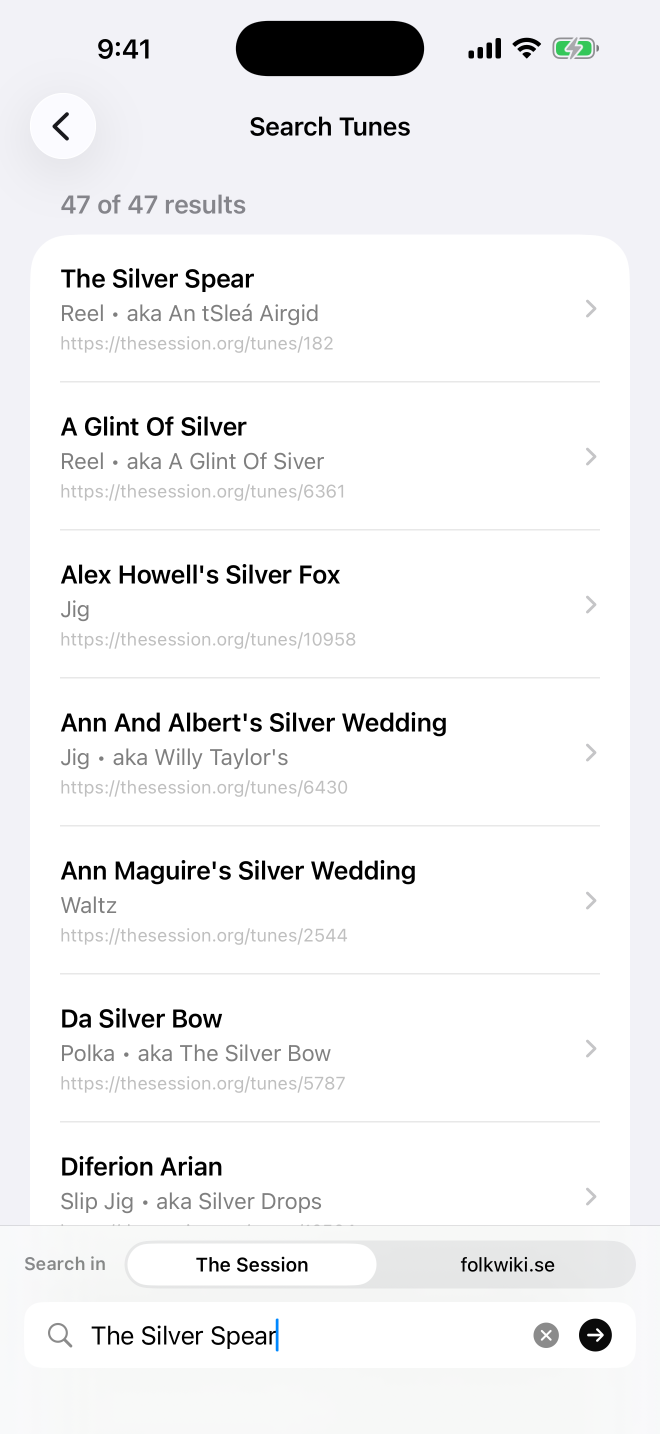
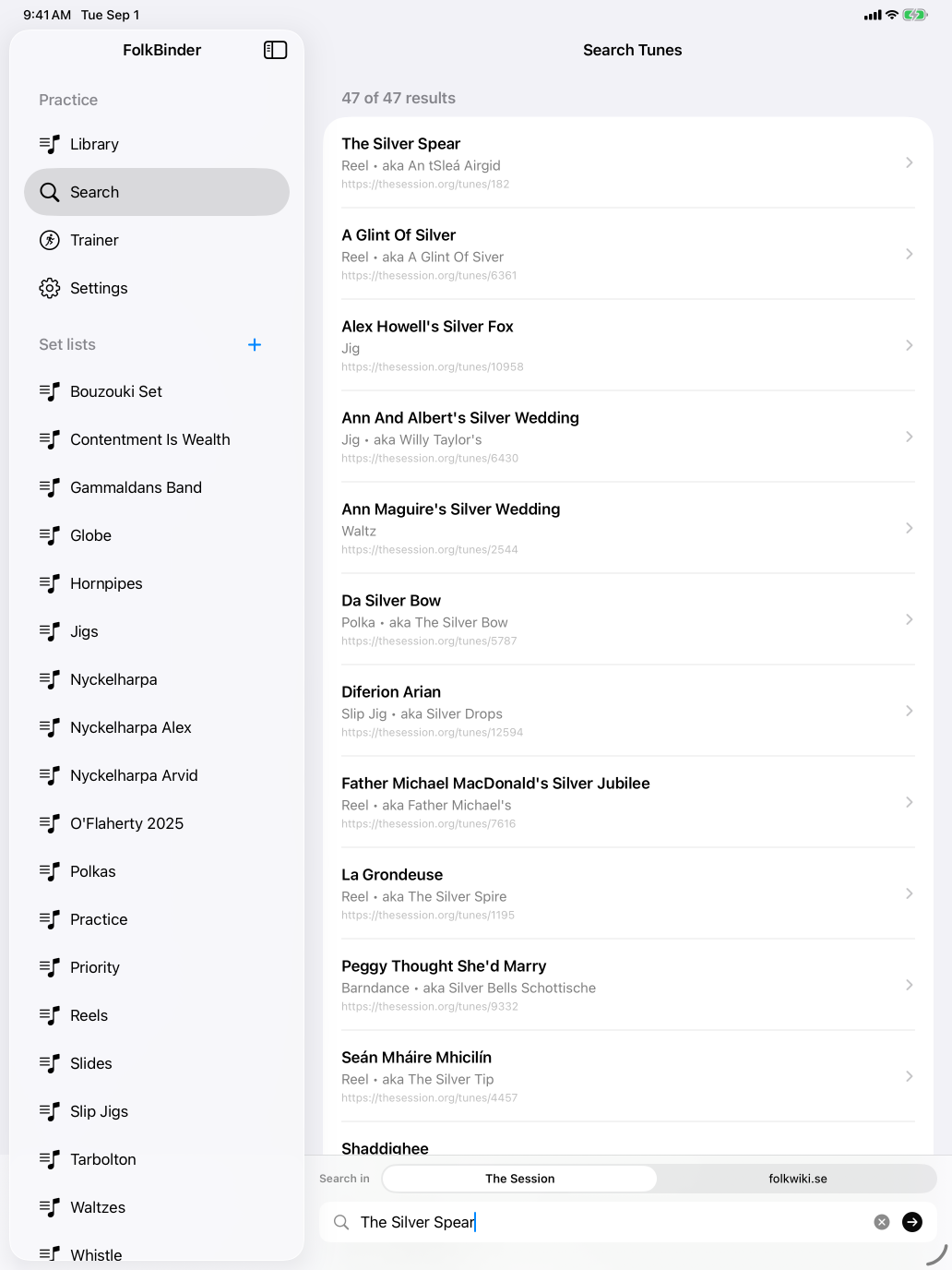
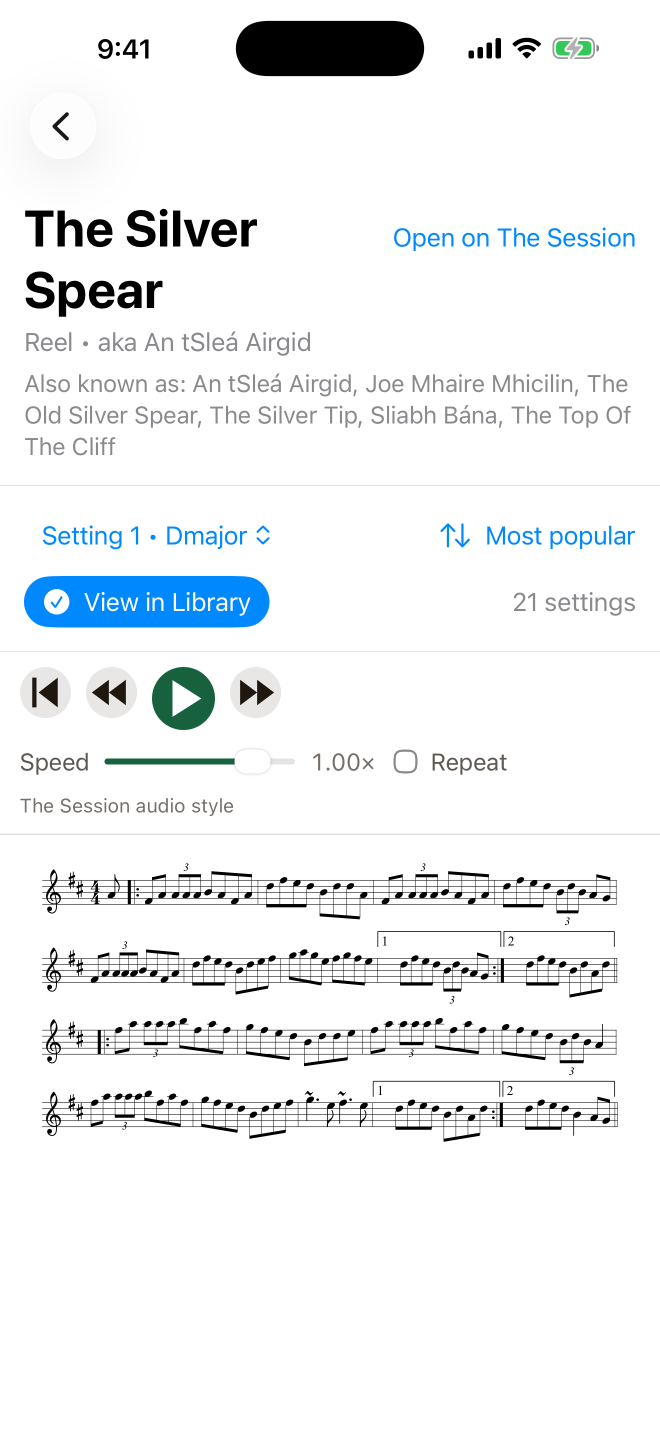
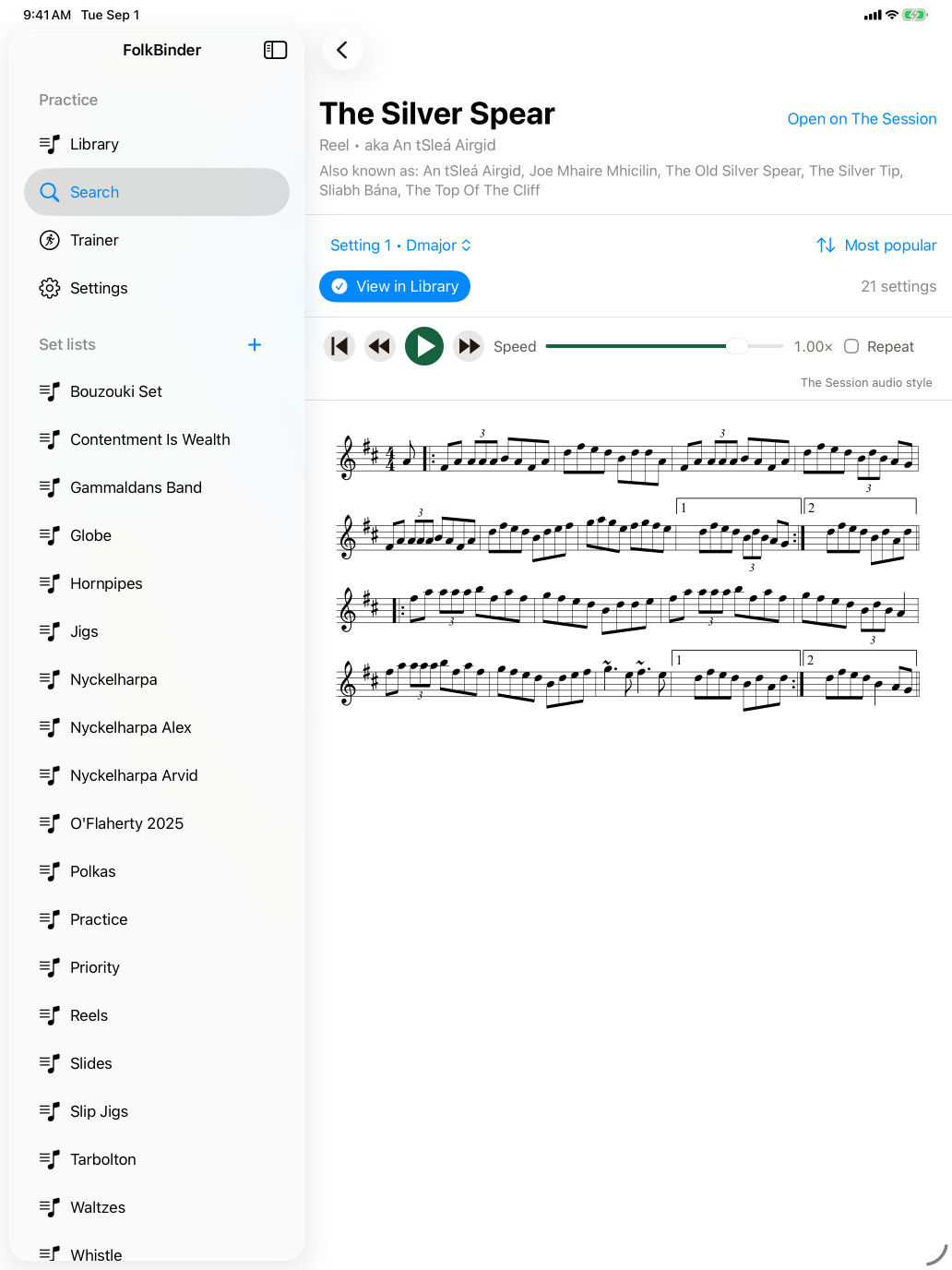
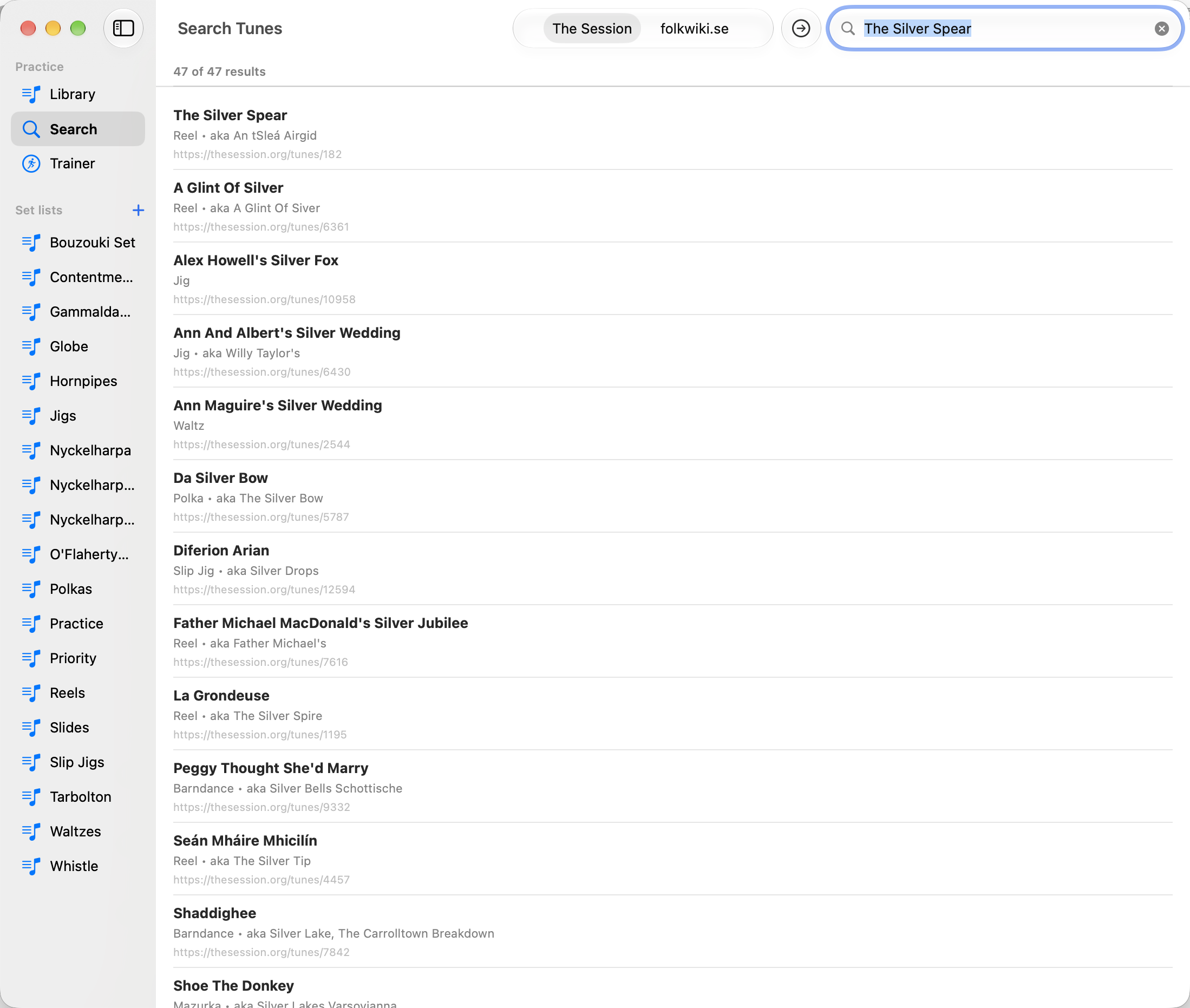
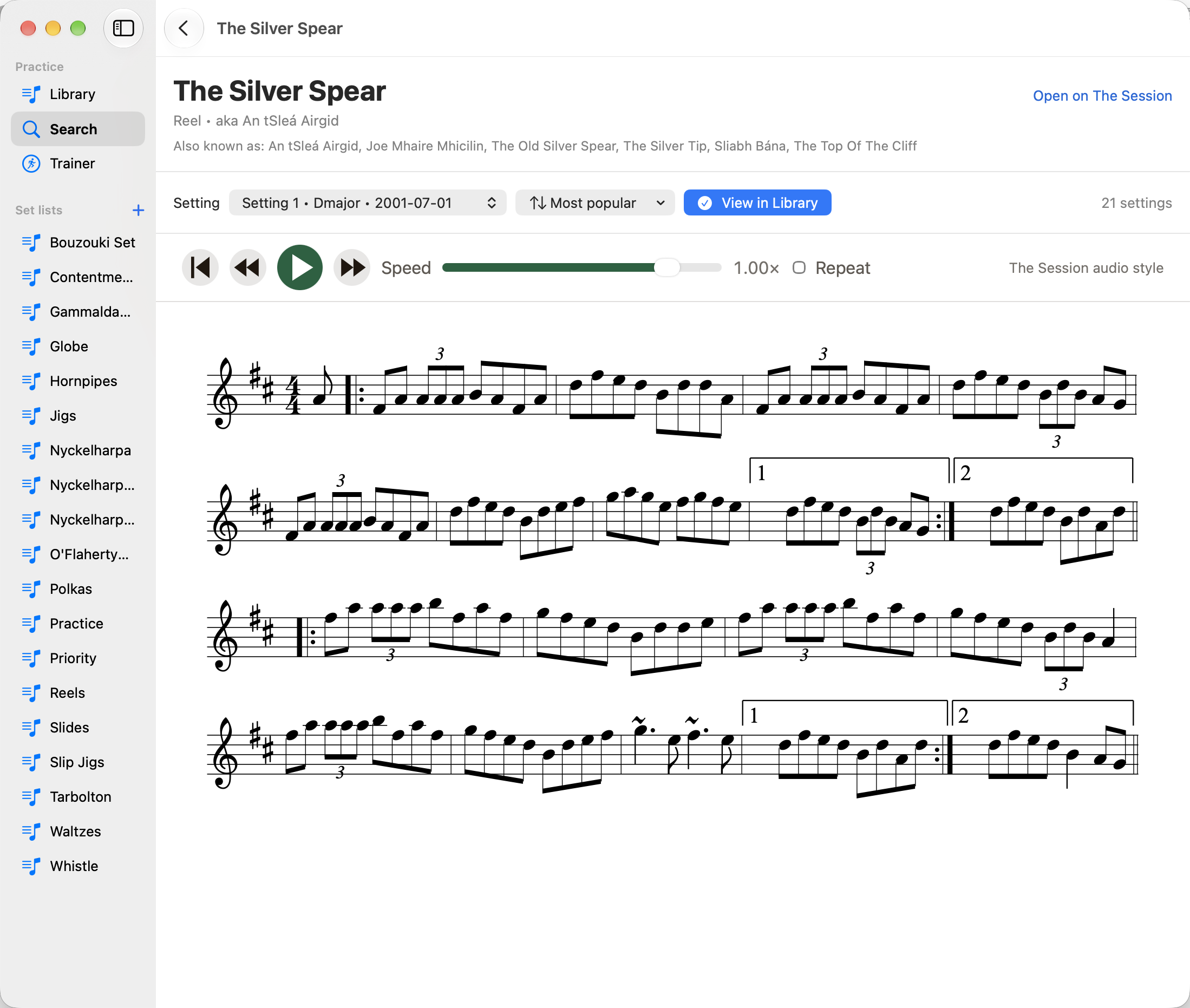
Search checks The Session and FolkWiki. Preview a result and choose the setting you want before adding it to your library. FolkBinder imports the selected setting as ABC notation and creates a PDF score from it for viewing, markup, sharing, and printing. The ABC remains available for playback and source sharing.
Import
- Import Score adds a single PDF or image. Images are prepared as PDF scores for viewing, markup, sharing, and printing.
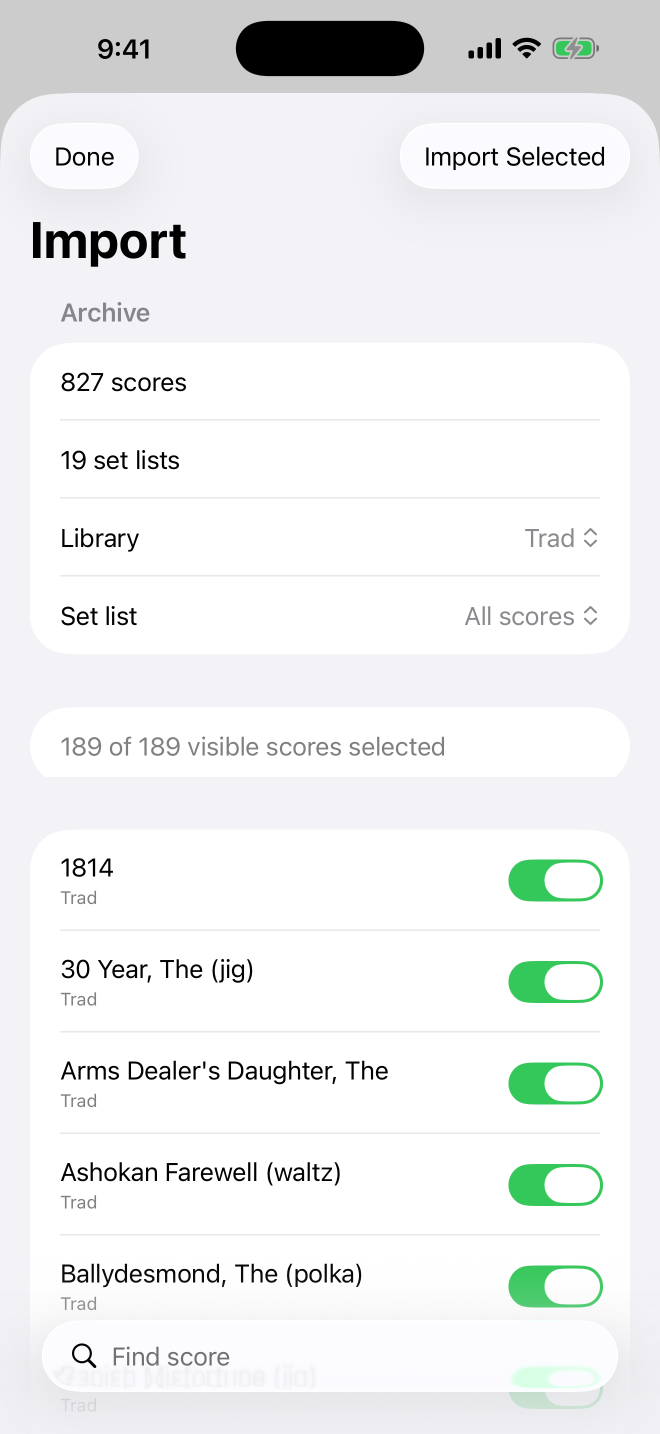
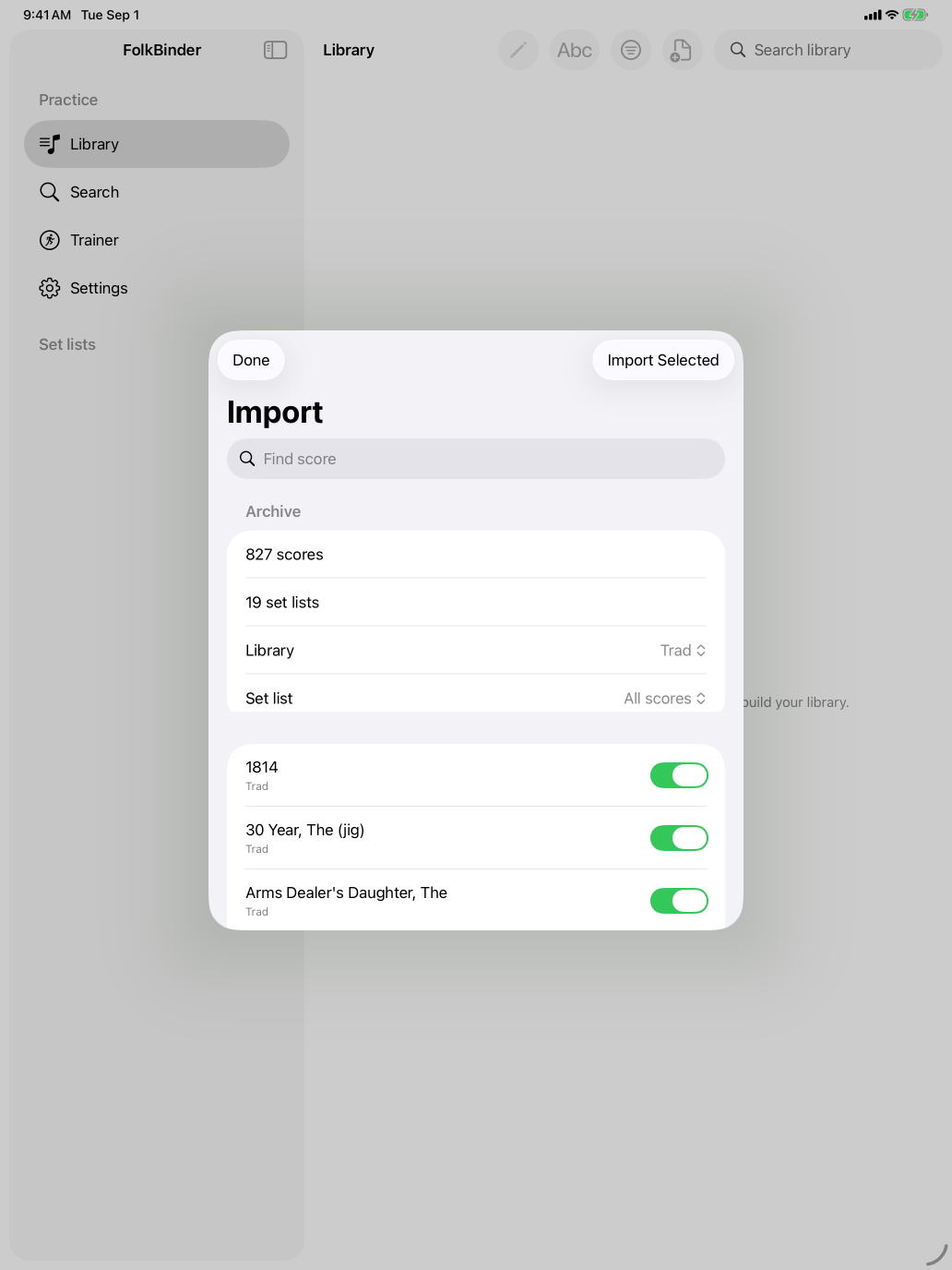
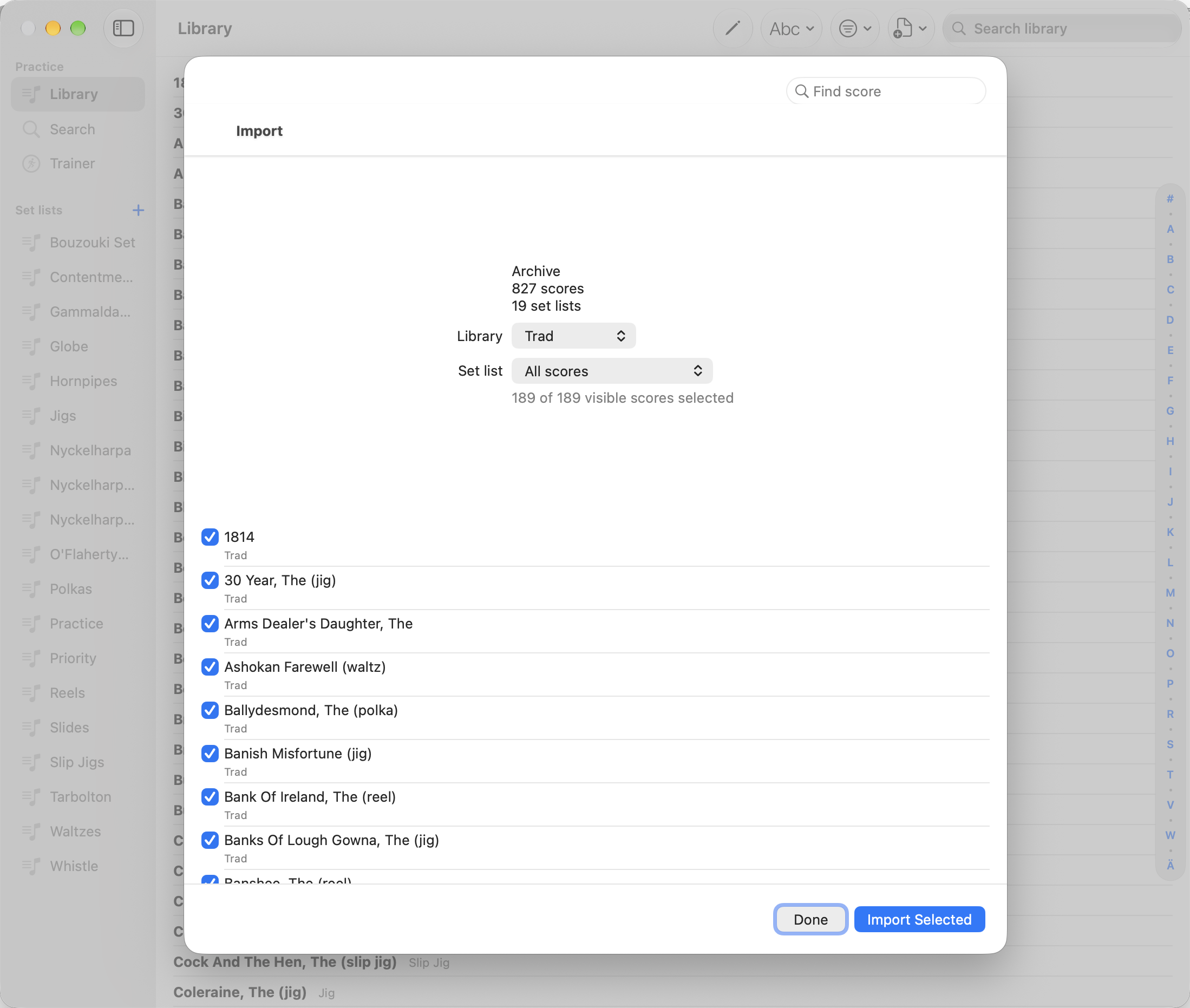
- Bulk Import adds multiple PDF, ABC, and image files and can read forScore archives.
- On Mac, drag supported files or folders onto the FolkBinder window or app icon. Folders are searched recursively. If a set list is open, imported scores are added to both the Library and that set list.
- A dropped forScore archive opens the archive-selection screen before anything is imported.
- Distinct scores with the same title are kept as separate tunes; identical copies from forScore archives are skipped.
Share to FolkBinder
On iPhone and iPad, use the system Share button in Files, Photos, Safari, or another app and choose Import to FolkBinder. PDF, ABC, and image files are supported.
Stay organized
Managing the Library
Search, sort, filter, edit, and organize your tunes.
Find a tune
- Library search matches titles, alternate titles, tune types, and keys.
- Sort alphabetically, by date added, or randomly.
- Filter by tune type and use the alphabetical index for long lists.
Tune actions
Touch and hold a tune on iPhone or iPad, or right-click or Control-click it on macOS, to open shortcuts for set lists and deletion.
- Add the tune to an existing or new set list.
- Delete the tune from the library and all set lists.
- Use the pencil button, Edit Tunes, to select multiple tunes, add them to a set list, or delete them together. Select All Results applies to the current search and filter.
Tune information
Open a tune, choose More, then Edit Tune Info to change its title, key, type, and alternate titles without replacing stored scores or recordings.
Prepare to play
Set Lists and Gestures
Prepare an ordered group of tunes for practice or performance.
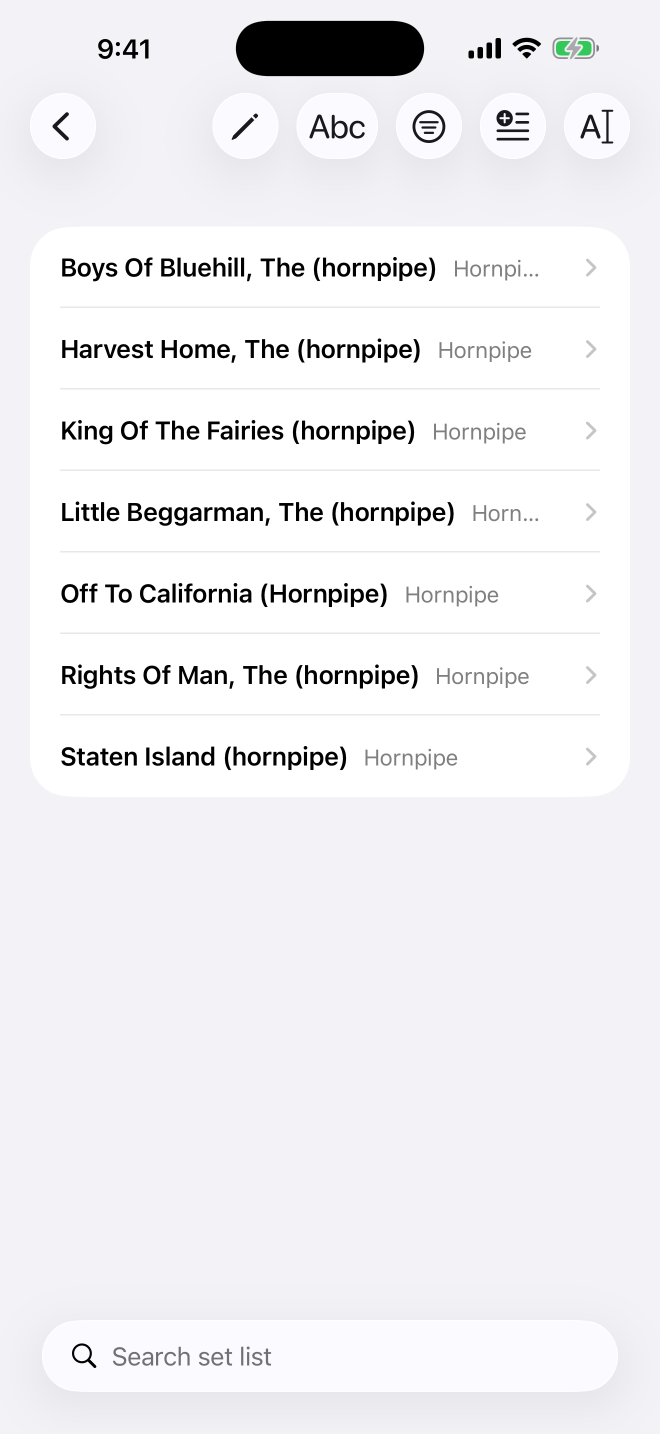
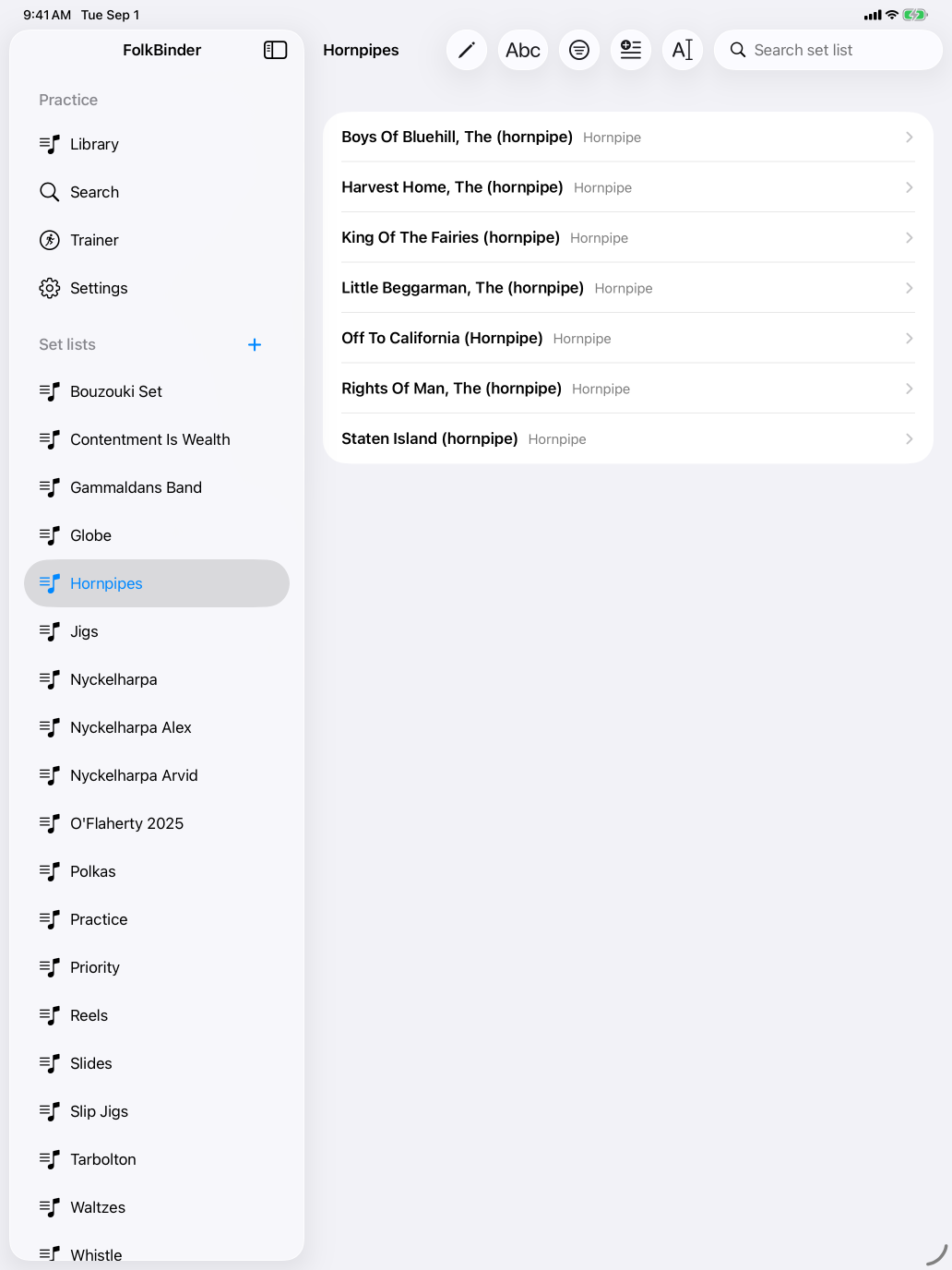
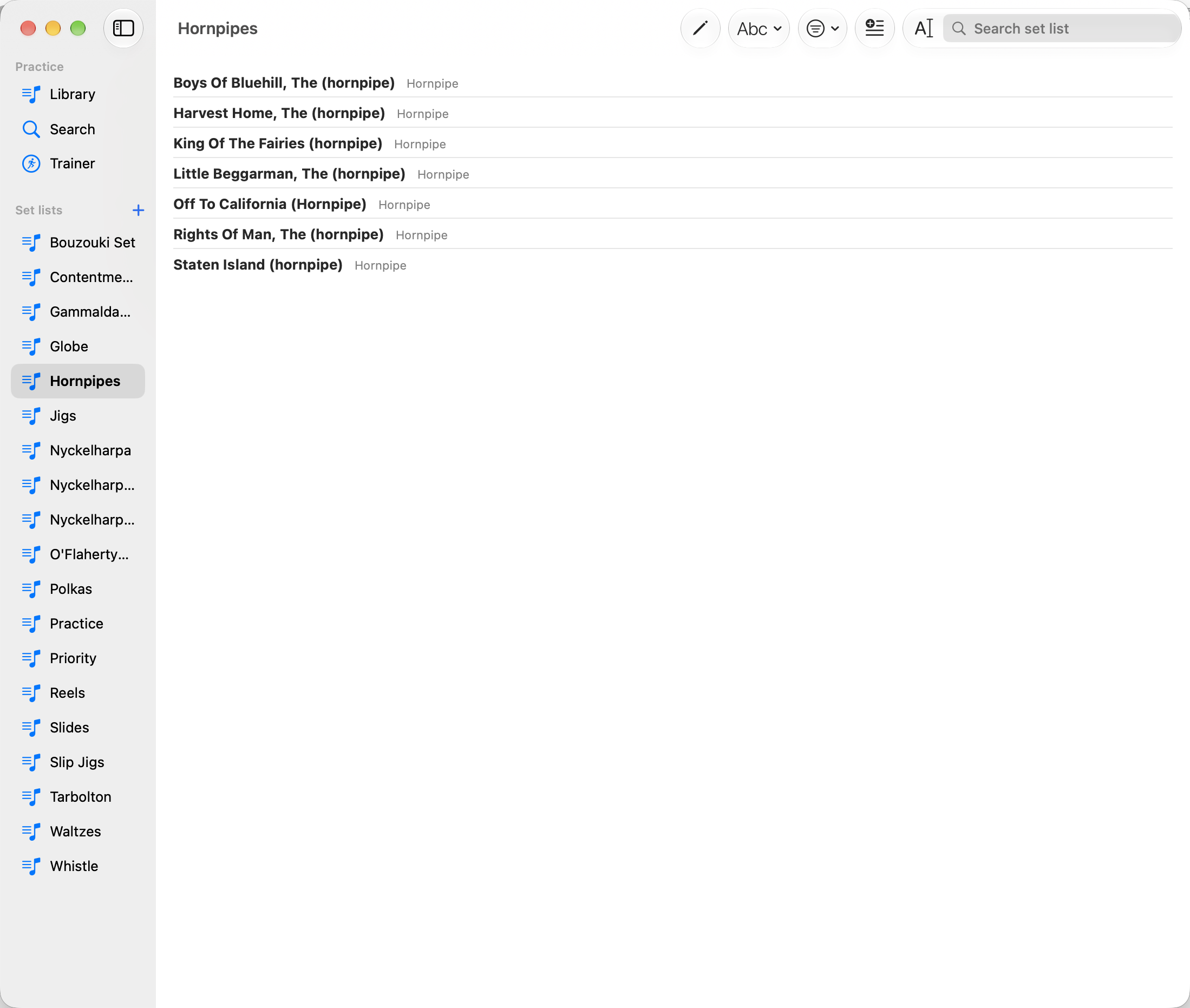
Create, rename, and delete
Use the plus button beside Set Lists in the sidebar to create a set list.
- On iPhone and iPad, swipe right to rename a set list or left to delete it. A full swipe performs the action immediately. Touch and hold a set list to open a menu containing Rename and Delete.
- On Mac, right-click or Control-click a set list to rename or delete it.
- To reorder set lists, touch and hold, then drag on iPhone or iPad; drag them directly on Mac.
- While viewing a set list, use the Rename Set List button to rename it.
Add and remove tunes
- Use Add Tunes while viewing a set list, or add the current tune from its toolbar.
- Use the pencil button, Edit Tunes, to select several tunes, add them to another set list, or remove them together. Removing a tune from a set list keeps it in the Library.
Order tunes
Choose Manual sort to arrange tunes yourself. On iPhone and iPad, use the pencil button, Edit Tunes, then drag tunes to reorder them. On Mac, drag tunes directly. Searching or filtering temporarily disables manual reordering.
While viewing a score from a set list, use Previous Score and Next Score in the toolbar. On iPhone or iPad, you can also swipe left for the next score or swipe right from within the score for the previous score.
Hands-free reading
Scores and Page Turners
Focus the score and navigate hands-free.
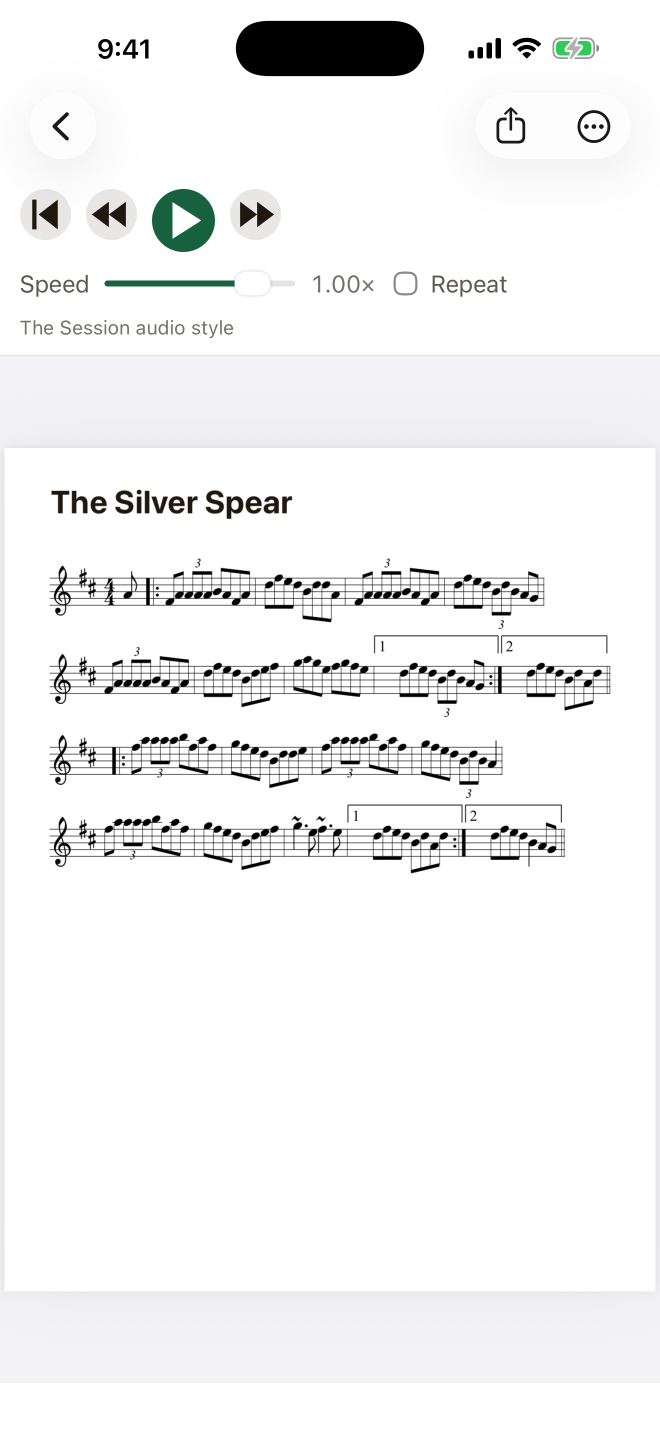
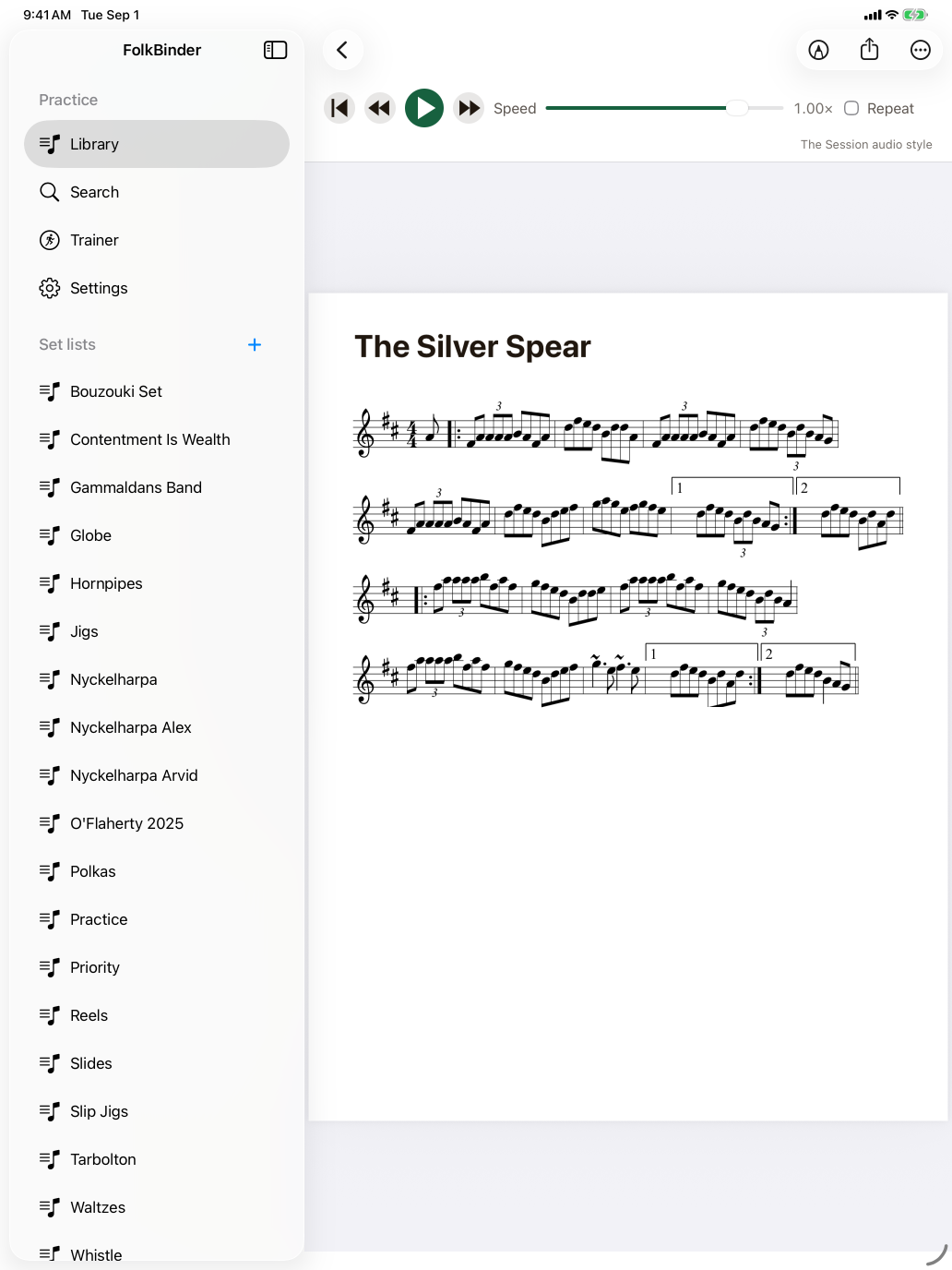
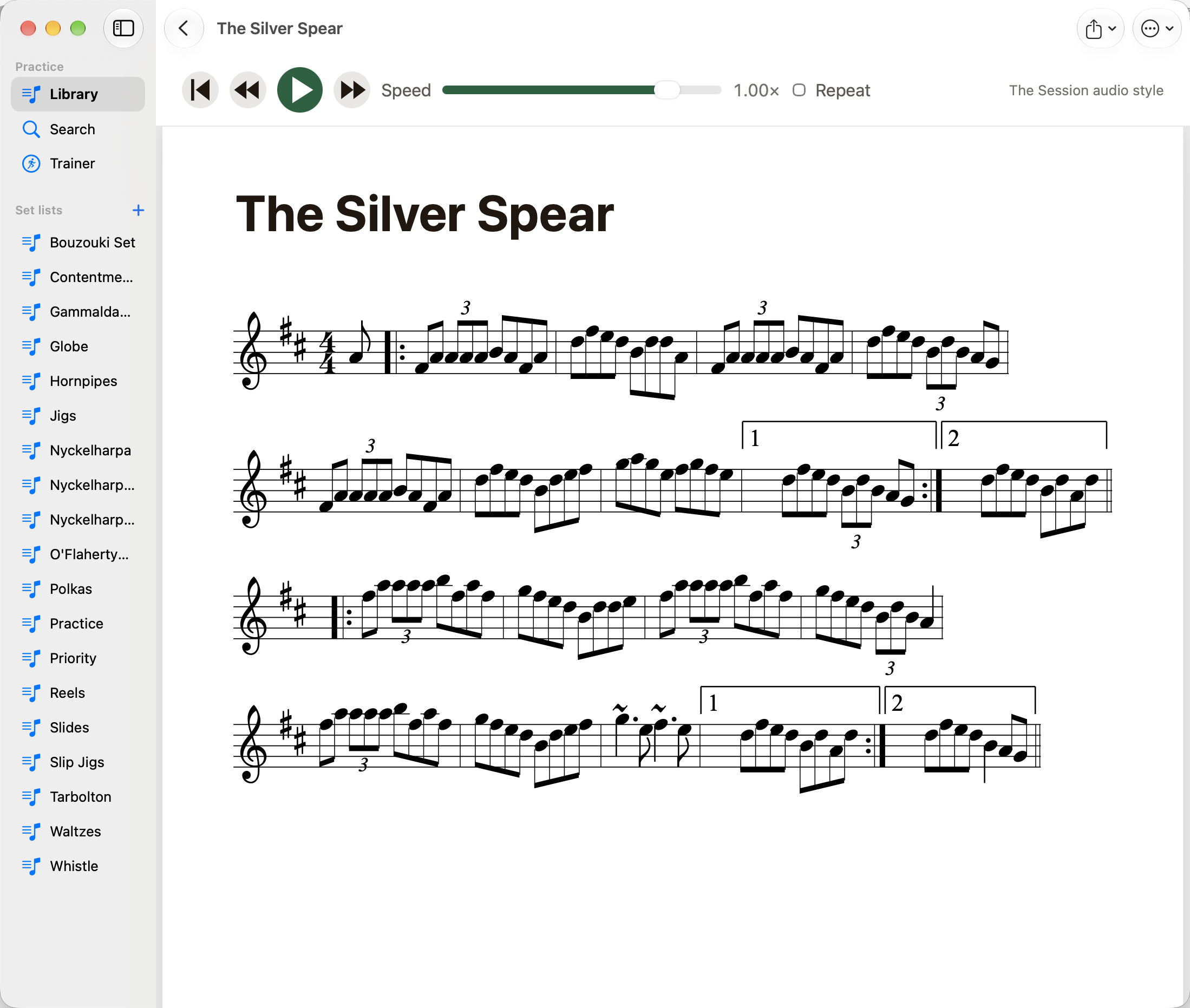
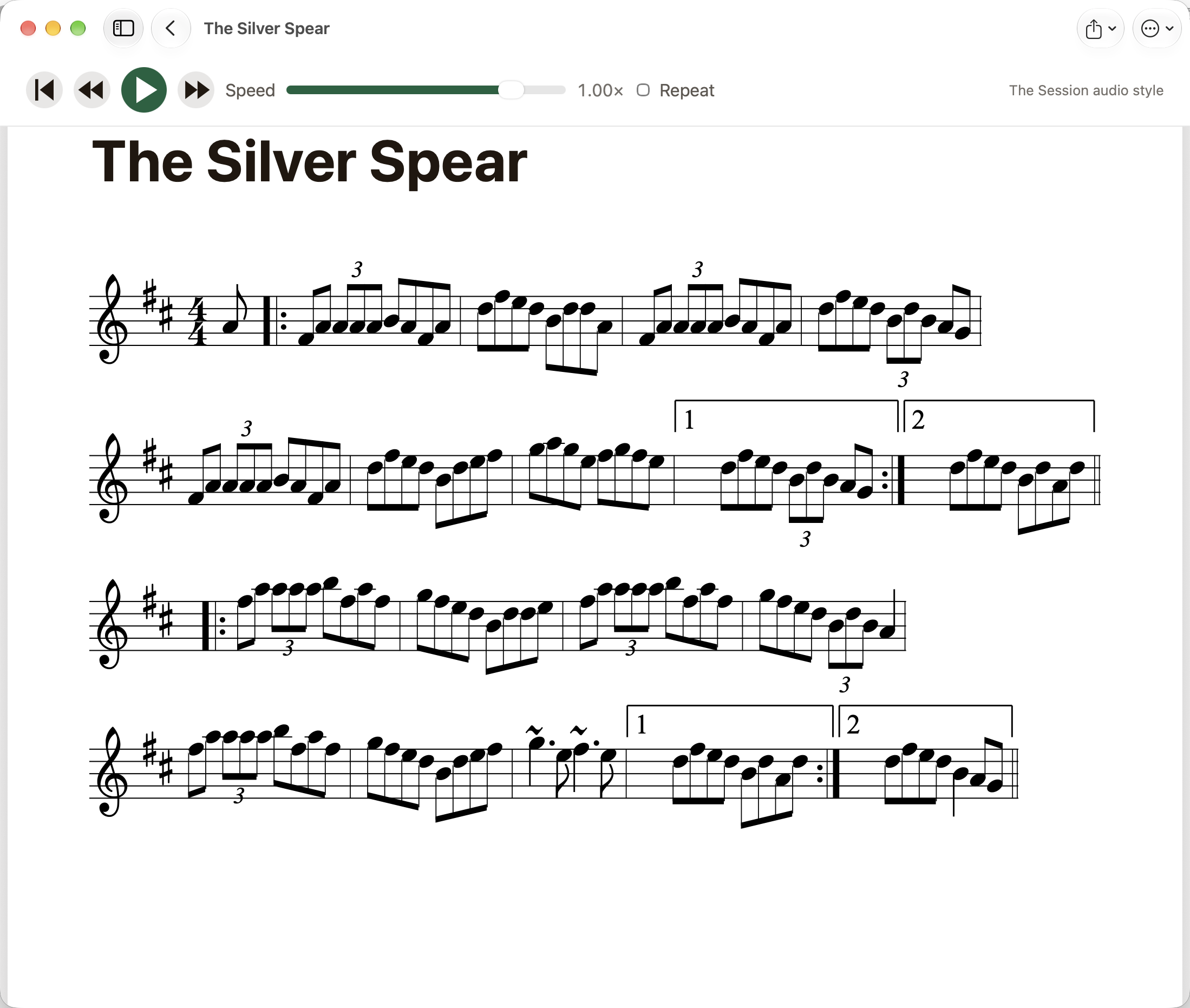
Focus the score
Tap a score on iPhone or iPad, or click it on macOS, to maximize it and hide the surrounding controls. Repeat the action to restore the full tune view.
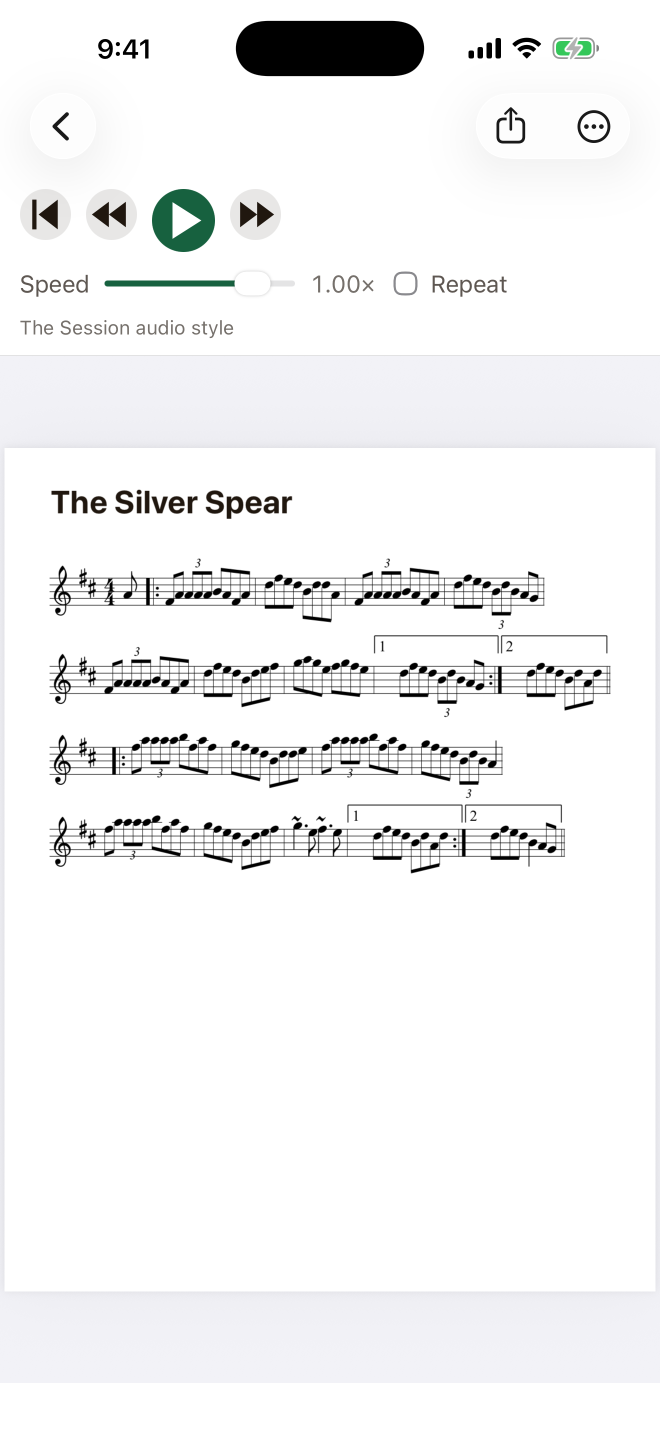
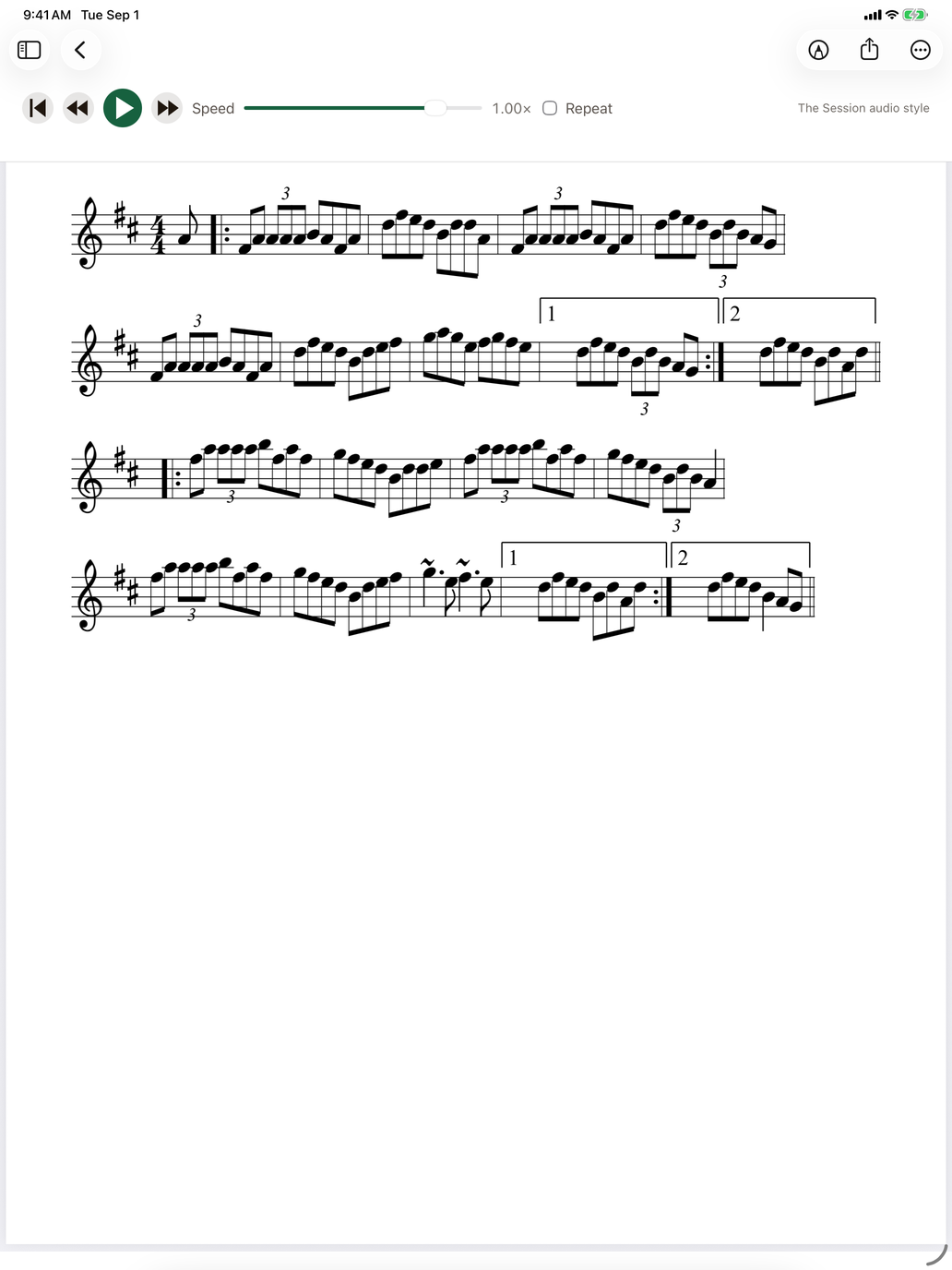
Navigate
- Left Arrow, Up Arrow, or Page Up moves backward.
- Right Arrow, Down Arrow, or Page Down moves forward.
- PDF scores and rendered ABC scores move by actual pages.
Bluetooth page turners
FolkBinder supports page turners that send standard Bluetooth keyboard commands. Pair the page turner in system Bluetooth settings; no vendor app or special connection inside FolkBinder is required.
Annotate with Apple Pencil
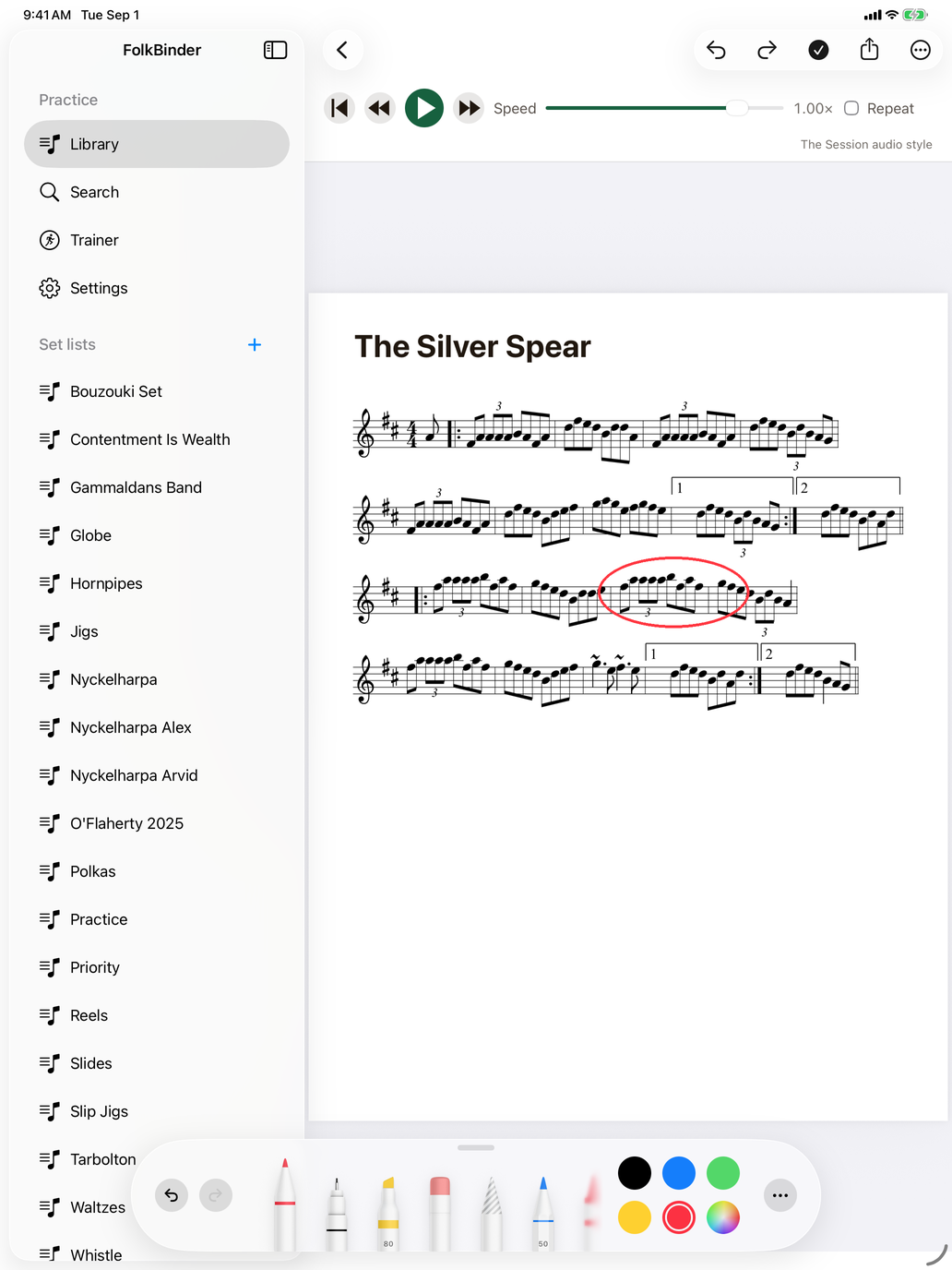
On iPad, tap the pencil-tip button, Annotate Score, then use Apple Pencil to write or draw on the score. Use Undo Mark or Redo Mark as needed, and tap Done Annotating when finished. FolkBinder stores annotations separately, leaving the original PDF or ABC source unchanged, and includes them when sharing or printing. Playback controls remain available above the score.
Share and print
Use the Share menu on a tune to create a score PDF, print it, or share ABC source when available.
Add sound
Playback and Recordings
Add playback or an audio recording without replacing the original score.
Playback
For a PDF-only tune, Find Playback searches The Session and FolkWiki for playable settings matching the tune’s title. Preview a result, choose the appropriate setting, then select Add Playback. FolkBinder keeps displaying your original PDF and adds playback controls from the selected setting. You can remove playback later without changing or deleting the PDF.
Recordings
Open a tune and use More to attach an audio recording. The recording can be played, paused, skipped backward or forward, replaced, or removed independently of the score.
PDF and ABC
When both formats are available, FolkBinder displays the original PDF with ABC playback controls above it. For an ABC-only tune, FolkBinder automatically creates a PDF for display, annotation, sharing, and printing while retaining ABC for playback and source sharing. Stored ABC scores render and play without an internet connection; searching for and importing new settings requires a connection.
Practice your repertoire
Trainer
Practice ear training and recall with the whole library or one set list.
Modes
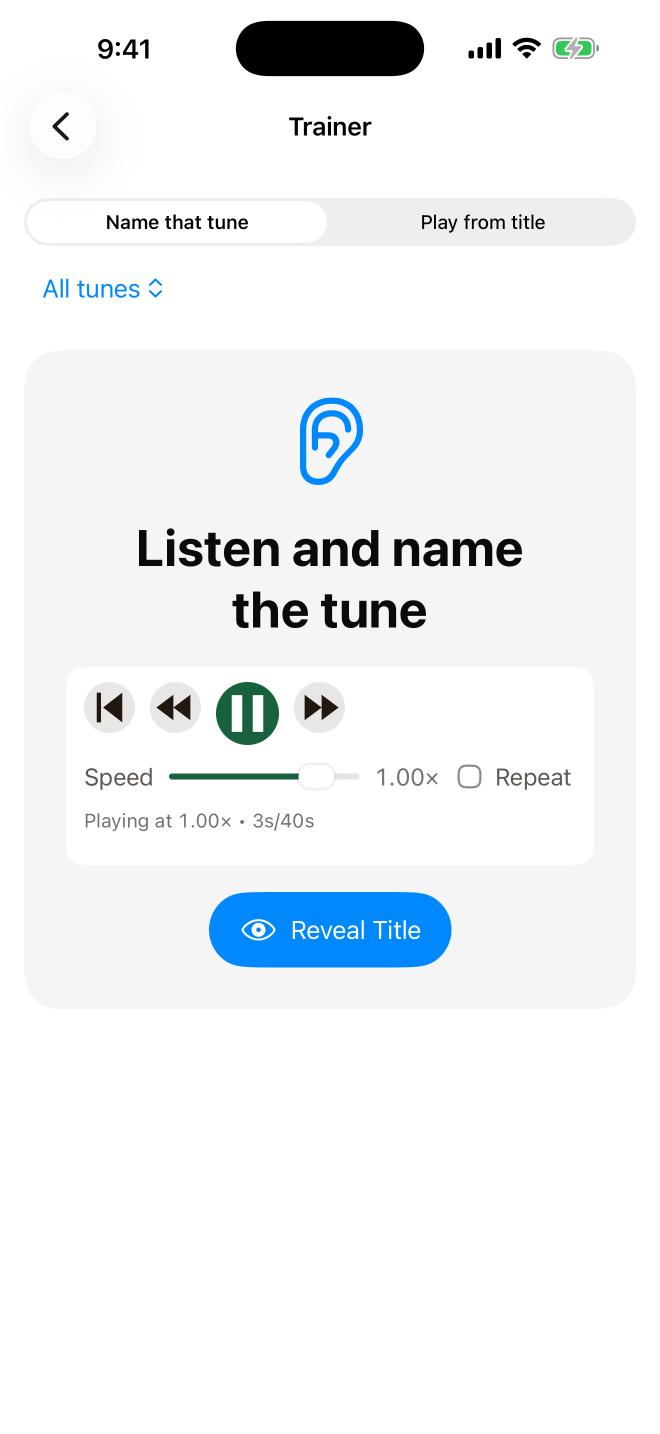
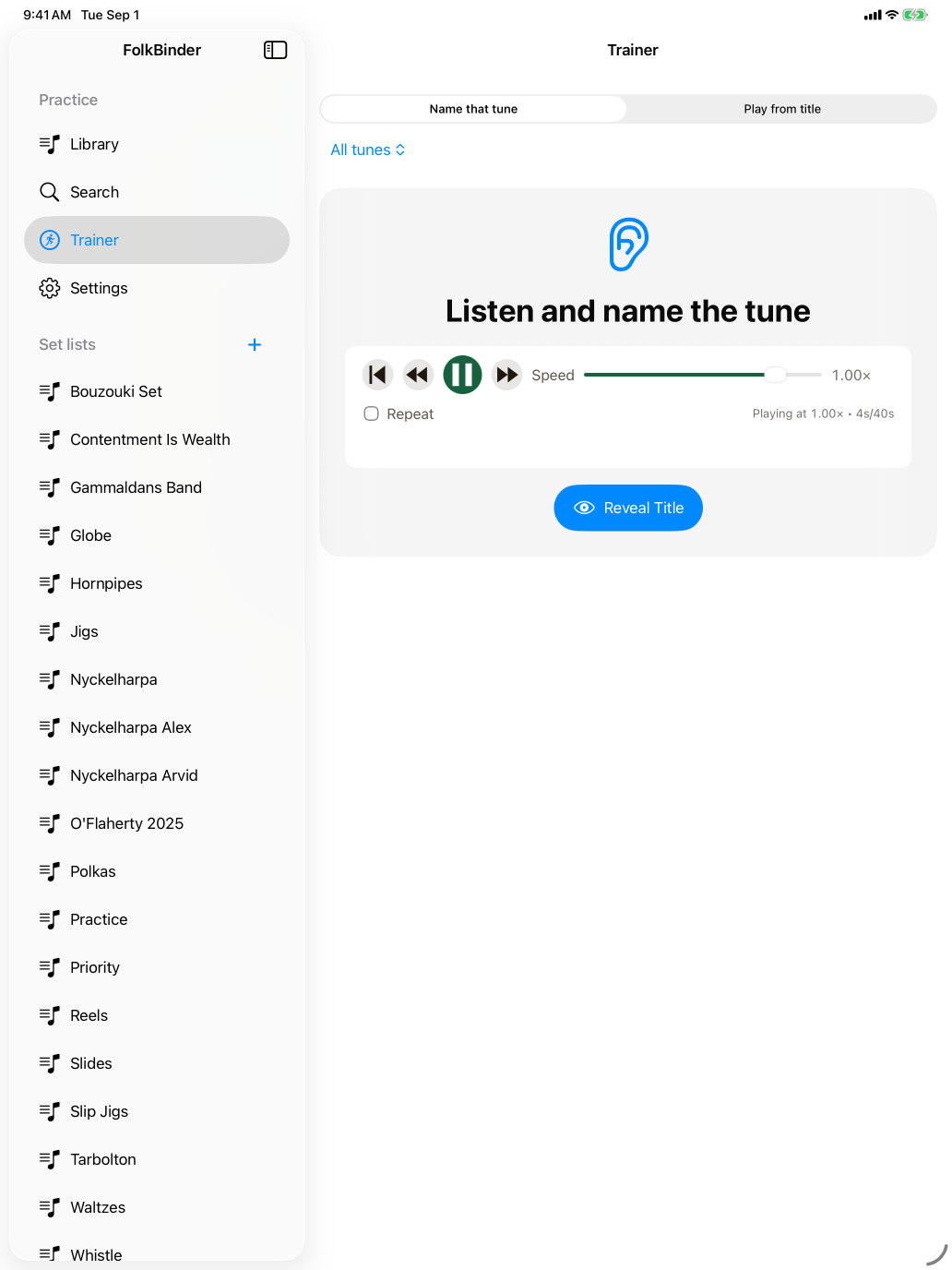
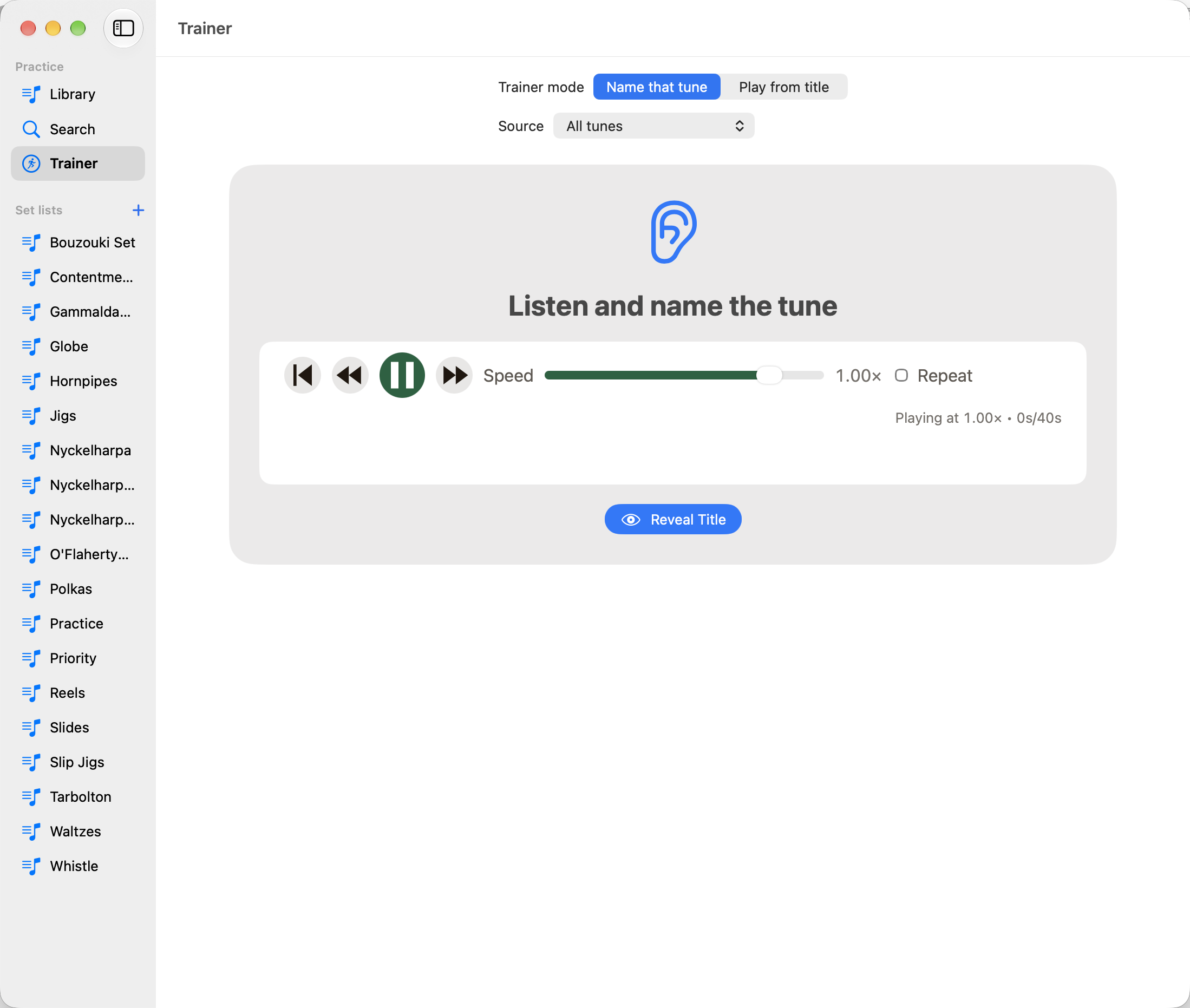
Name that tune
Uses a recording, ABC, or MIDI playback and lets you reveal the title after identifying the tune.
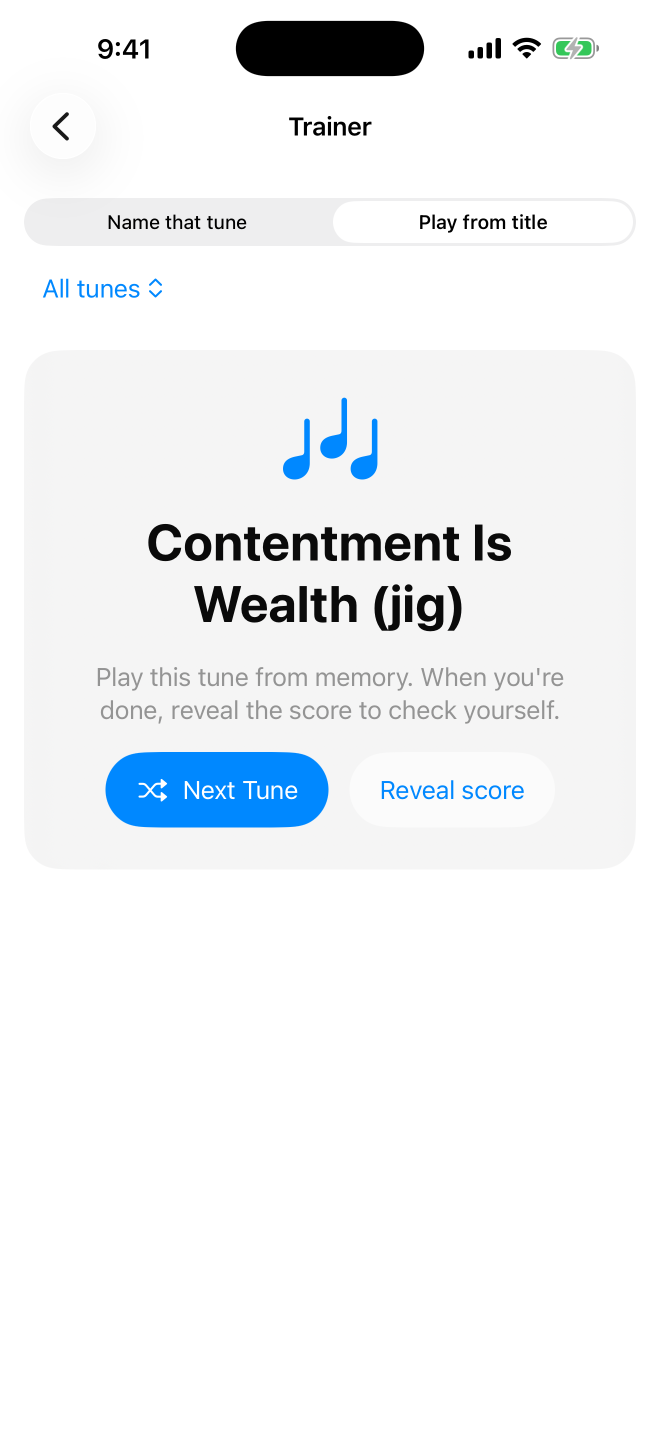
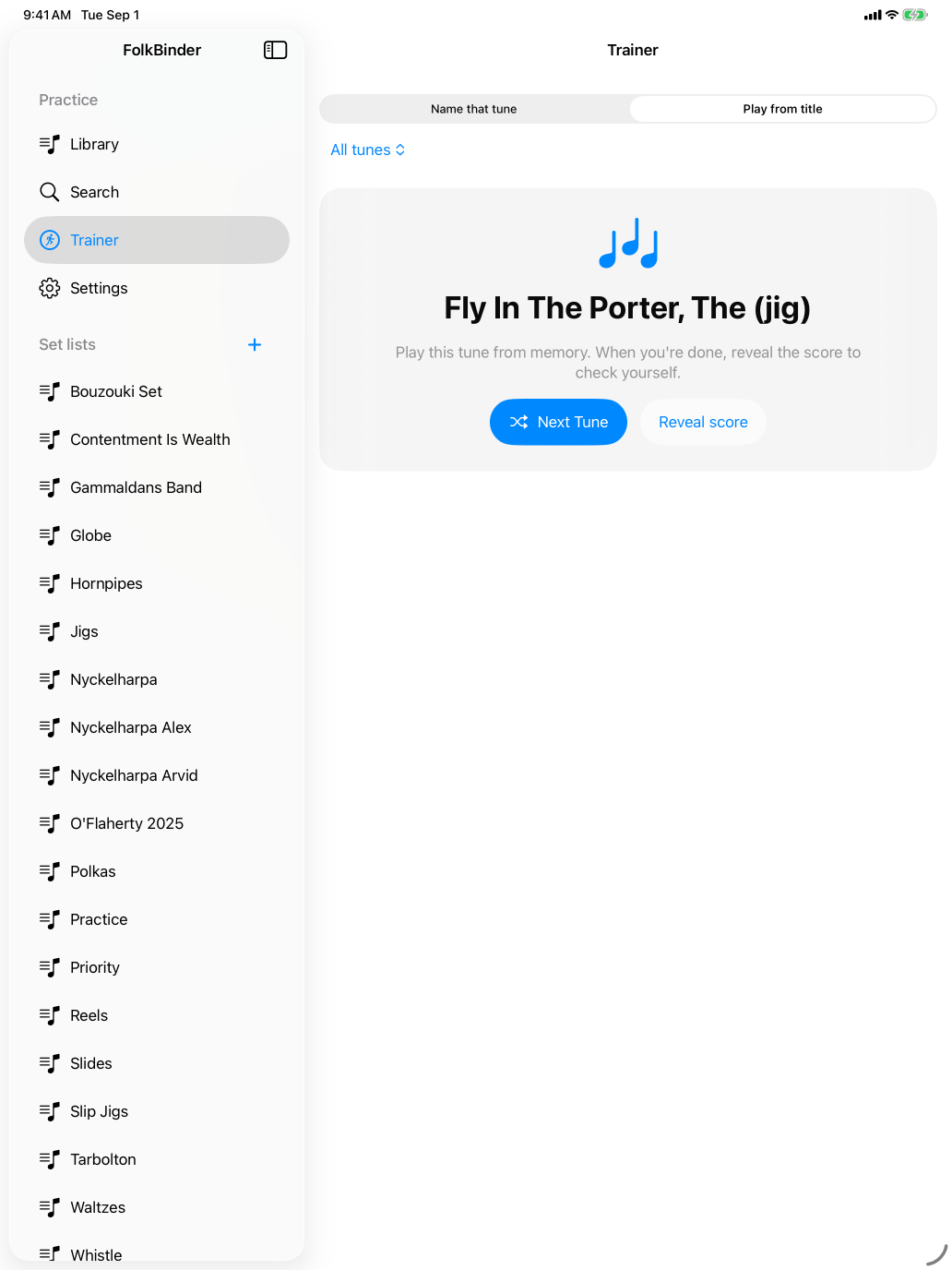
Play from title
Shows a tune title and asks you to play it from memory, then lets you reveal the score to check yourself.
Name that tune includes only tunes with available playback. Play from title can use any tune in the selected source.
Sessions
Choose All tunes or a set list, then select Start Practice. Trainer presents tunes in random order and tracks which ones you have practiced. Your session remains when you navigate away. Changing the mode or source starts a new session.
Protect your collection
Backup and Storage
Protect your library and choose where it is stored.
Backups
Save Backup in Settings includes library metadata, set lists, scores, MIDI files, recordings, and annotations. FolkBinder never creates backups automatically. Restore Backup can merge this content into the current library or replace it.
Repair Library
Repair Library in Settings checks set list membership and stored-file references. It reconnects recognized score, MIDI, recording, and annotation files, corrects file metadata, and removes references to files that no longer exist.
FolkBinder keeps the previous valid catalog and Repair can restore it if the current catalog becomes unreadable. This catalog copy does not include the stored files, so keep full backups too.
Storage
Local only stores the library on this device. iCloud sync stores it in your private iCloud container and syncs it across your devices. Settings also shows the library’s total size and file-type breakdown. Save a current backup before changing storage or restoring a library.
Move faster
Keyboard Shortcuts
Use a keyboard or page turner while viewing scores.
Scores
Previous score page or scroll backward
Next score page or scroll forward
Move backward or forward
macOS
Open Settings
Open FolkBinder Help
When something goes wrong
Troubleshooting and Feedback
Try a few first steps or send feedback.
First steps
- If you still have the original score or audio file, confirm that it opens in another app.
- For Bluetooth page turners, confirm that the device is paired and configured to send arrow or page keys.
- If storage is involved, save a backup before attempting recovery or changing storage mode.
Send Feedback
Open Settings in FolkBinder on iPhone or iPad, or choose Send Feedback from the FolkBinder application menu on macOS.
- Describe what happened and what you expected.
- Include the steps that reproduce the problem.
- App version, build, device model, operating system, and locale are added automatically.
No matching topics
Try a different word or .